 Murmur
Dictation on Windows: A Step-by-Step Tutorial
Most people speak around three times faster than they type, yet very few dictate. Usually it is because the first try was awkward: a tool that needed a special window, a shortcut that clashed with something, text that ended up in the wrong place. This tutorial walks through a setup that avoids all of that, from installation to your first dictated paragraph.
What you need
- A Windows 10 or Windows 11 PC (64-bit).
- A microphone. The one built into your laptop or webcam is fine; a headset is better in noisy rooms.
- About 1.5 GB of disk space for the speech model.
- An internet connection for the one-time model download. After that, none.
Step 1: Install and open Murmur
- Open the Microsoft Store and search for Murmur: Voice Typing, or use the link at the end of this article.
- Click Get and wait for the install to finish.
- Launch Murmur from the Start menu. The settings window opens.
Step 2: Download the speech model
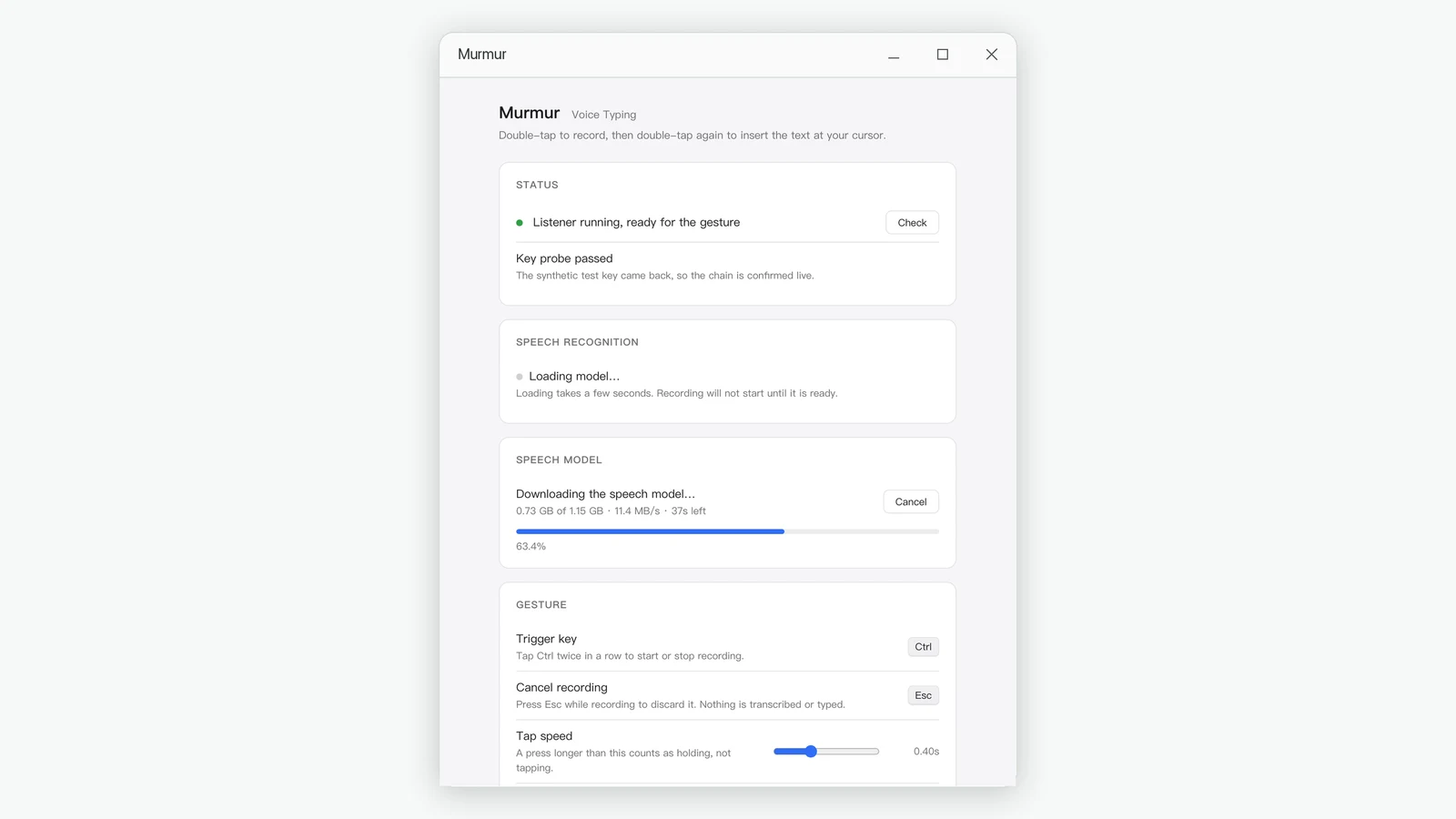
Murmur recognizes speech on your own computer, so it needs its speech model on disk. The settings window shows a Speech model card.
- Click the download button on the Speech model card.
- Watch the progress bar. It shows how much has been downloaded, the speed and the time remaining.
- If your connection drops or you close the app, simply start it again. The download resumes where it left off instead of starting over.
- When it finishes, the Speech recognition card briefly shows Loading model, then Model ready.
Step 3: Check the listener
The Status card at the top tells you whether Murmur is listening for the gesture. A green dot and "Listener running" means you are ready. The Check button runs a quick self-test that confirms key presses are reaching Murmur.
Step 4: Your first dictation
- Open Notepad, or any app with a text field, and click where you want the text to go.
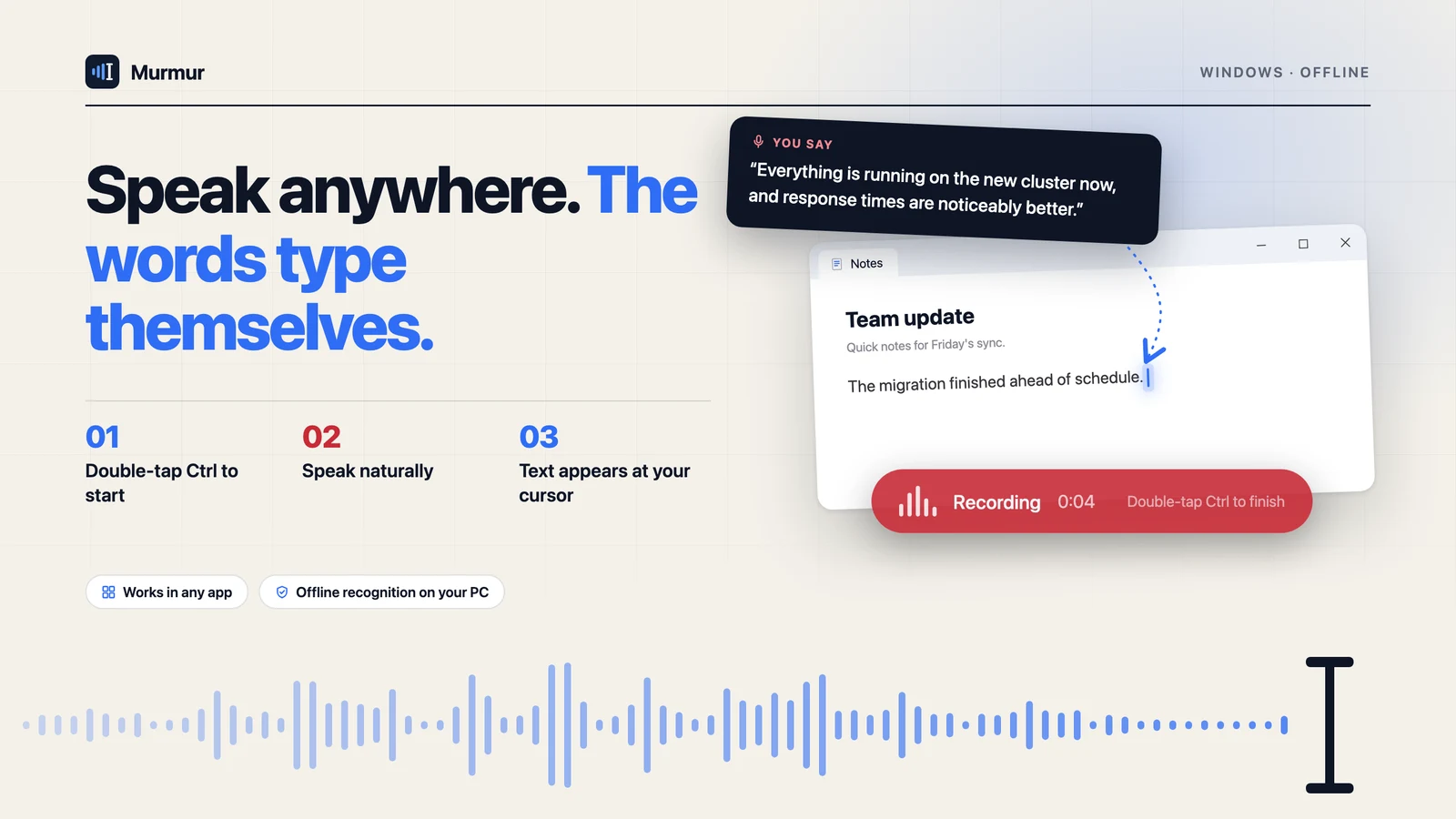
- Tap Ctrl twice quickly. A red capsule appears near the bottom of the screen with a timer.
- Say: "This is my first dictated sentence, and it was faster than typing it."
- Tap Ctrl twice again. The capsule switches to a short "transcribing" state, then the sentence appears at your cursor, punctuation included.
Notice that the window you were typing in never lost focus. You can keep typing straight after the inserted text, without clicking anything.
Step 5: Cancel a recording
Started recording by mistake, or lost your train of thought? Press Esc while the capsule is showing. The audio is discarded and nothing is typed. Esc still reaches the app you are in, so it behaves the way you expect there too.
Step 6: Adjust the gesture to your hands
The Gesture card in settings has two sliders:
- Tap speed: a press longer than this counts as holding Ctrl, not tapping it. Raise it if your taps are deliberate; lower it if you often hold Ctrl for shortcuts.
- Gap between taps: how quickly the second tap must follow the first. Raise it if double-taps are being missed.
The trigger only fires when Ctrl is pressed alone. Ctrl + C, Ctrl + V and every other shortcut keep working exactly as before.
Step 7: Fine-tune the rest
- Capsule position: move the capsule higher if it covers a taskbar or a status bar you care about.
- Recording limit: cap how long a single recording can run, from 30 seconds to 10 minutes. The default is 2 minutes.
- Language: the interface is available in nine languages and follows your system language by default.
When you are done, close the settings window. Closing it quits Murmur, so if you want dictation available all day, minimize it instead.
Habits that make dictation faster than typing
- Think first, then speak. Pause for a second to form the sentence before you double-tap. Dictation rewards complete thoughts.
- Dictate in paragraphs. One recording per idea keeps each insertion easy to review.
- Draft by voice, edit by keyboard. Do not try to fix every word by speaking. Get the content down, then polish with the keyboard.
- Start with replies. Email and chat responses are the easiest place to build the habit, because they are already conversational.
- Give it a week. The first day feels strange. By the end of a week, reaching for the double-tap becomes automatic.
Troubleshooting
Nothing happens when I double-tap Ctrl
Check the Status card in settings. If the listener is not running, click Check. Also make sure you are tapping Ctrl on its own: if another key is pressed in between, Murmur deliberately treats it as a shortcut. If your taps are slow, raise the Gap between taps slider.
The capsule appears but says recognition failed
The speech model is either still loading or not yet downloaded. Look at the Speech recognition card; it should read Model ready. Loading takes a few seconds after Murmur starts.
Recording finished but the text is empty
Murmur returns nothing when it hears silence, rather than guessing. Make sure the right microphone is set as the default input device in Windows sound settings, and that it is not muted.
The text appeared in the wrong place
Click inside the text field before you start, and avoid clicking elsewhere while you speak. Our article on why voice typing puts text in the wrong place explains the details.
Murmur types what you say into any Windows app, and your voice never leaves your PC.
Get Murmur from the Microsoft Store