 Murmur
Why Voice Typing Puts Text in the Wrong Place (and How to Fix It)
You dictate a perfect paragraph, stop recording, and nothing appears. Or it appears in the browser's address bar instead of the email you were writing. Or it replaces the text you had selected. If this has happened to you, the microphone and the recognition were probably fine. The problem was focus.
What "focus" means on Windows
At any moment exactly one window on your screen receives keyboard input. That is the window with focus, and inside it one control, such as a text box, has the blinking cursor. When any program "types" for you, the characters go to whatever has focus at the moment of insertion. Not where your cursor was a minute ago, not where you are looking: wherever focus is right now.
How dictation tools steal focus
Most voice typing tools show some kind of window while they listen: a toolbar, a floating bubble, a panel. On Windows, showing a window normally activates it, which moves focus to it. That has three consequences:
- The text goes to the tool's own window. When recording ends and the text is inserted, focus is still on the overlay, which has nowhere to put it. The words vanish.
- The tool tries to switch back, and guesses wrong. Some tools try to return focus to "the previous window". If you clicked elsewhere, opened a notification, or the previous window was a browser with several focusable areas, the text lands somewhere unexpected, like an address bar.
- Switching back resets the cursor. Even when focus returns to the right app, some apps move the caret or select all when they are re-activated, so the insertion replaces text or appears at the top of the document.
Windows also limits which programs may bring a window to the foreground, to stop apps from stealing focus from each other. A dictation tool that took focus may simply be refused when it tries to hand it back.
Other causes worth ruling out
- The text field was not active. Clicking on a page is not the same as clicking inside an input. Make sure the cursor is blinking where you want the text.
- The app blocks pasting. A few password fields and secure forms refuse pasted input. Dictation tools that insert via the clipboard cannot type there.
- An elevated app. Windows does not let a normal program send input to a program running as administrator. Dictating into an admin command prompt, for example, will not work.
- A shortcut collision. If the tool's hotkey is also used by the app in front, the app may react to it and move focus itself.
The fix: a dictation tool that never takes focus
The reliable solution is not to restore focus more cleverly, but to never take it in the first place. That is how Murmur is designed:
- The recording capsule is a non-activating window. It is shown without being activated and ignores mouse clicks, so it can sit on top of everything without ever becoming the window with focus.
- The trigger is a bare double-tap of Ctrl. It does not collide with any app's shortcut, so the app in front never reacts to it.
- A safety net, just in case. Murmur remembers which window was in front when you started speaking. Before inserting, it checks that focus is still there. In normal use it is, and nothing is switched. If something else did take focus in the meantime, such as a pop-up, Murmur returns to the original window first.
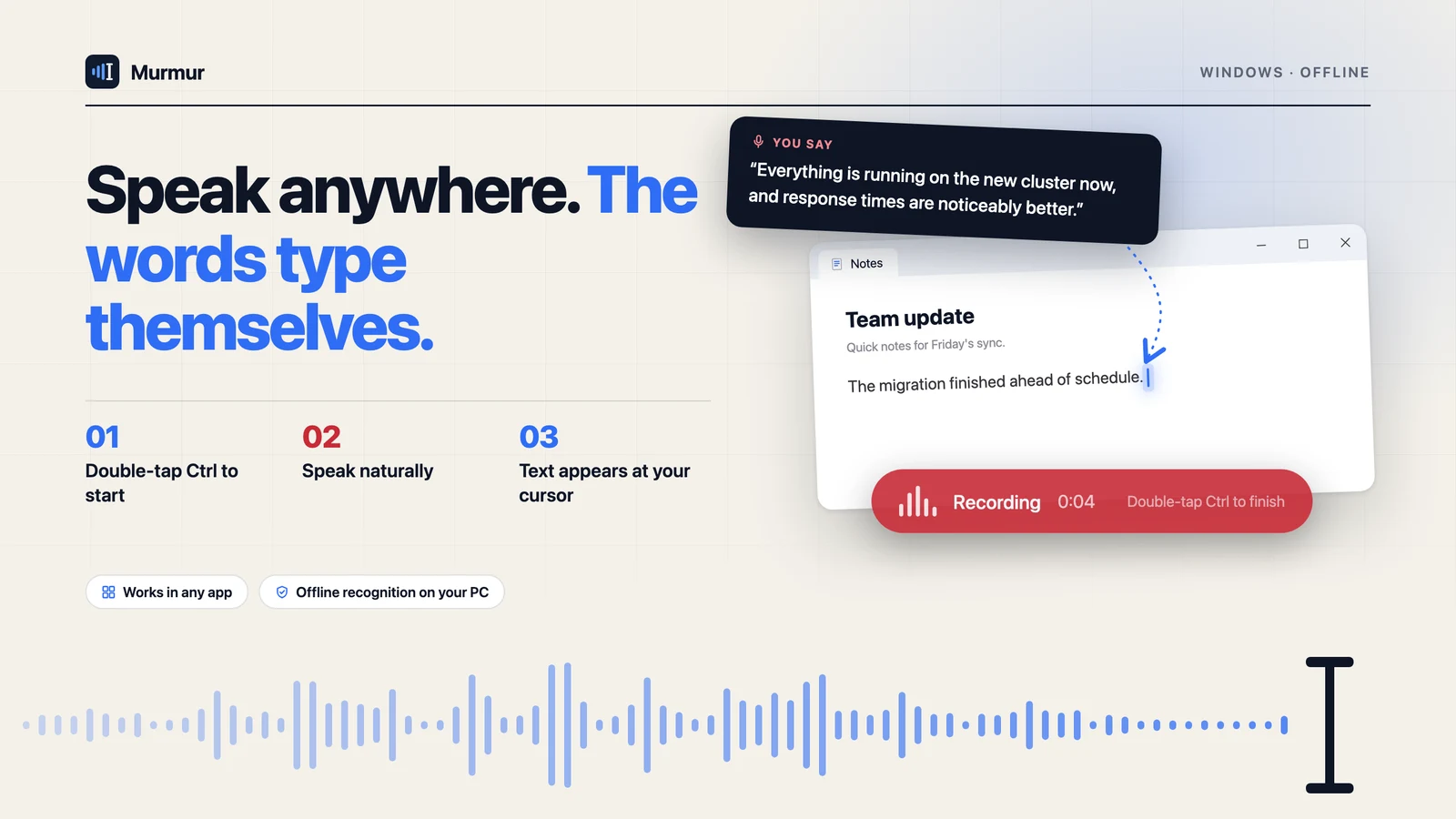
The result is that the text goes exactly where your cursor was, and you can carry on typing after it without clicking.
How to tell if your current tool steals focus
You can test any dictation tool in under a minute:
- Open Notepad and type a few words, leaving the cursor at the end.
- Start dictation with the tool's hotkey or gesture.
- While it is listening, look at Notepad's title bar. On Windows 11 an inactive window's title text turns grey.
- If the title bar went grey, the tool's window took focus. If it stayed active, focus never moved.
- Finish dictating and type a character immediately afterwards. If your character appears right after the dictated text, insertion and focus both worked.
A tool that passes this test every time is one you can use without looking. A tool that fails it will eventually drop text into the wrong window, usually at the worst possible moment.
A checklist when dictated text goes missing
- Click inside the text field so the cursor is blinking before you start.
- Avoid clicking elsewhere while you speak. Look, but do not click.
- Check whether the target app is running as administrator.
- Try the same dictation in Notepad. If it works there, the target app is blocking pasted input.
- Use a dictation tool whose overlay does not take focus.
Getting this right is what makes voice typing feel trustworthy. Once you know the words will land where you are looking, you stop checking and start talking. For a full walkthrough, see our step-by-step dictation tutorial.
Murmur types what you say into any Windows app, and your voice never leaves your PC.
Get Murmur from the Microsoft Store